It's Always DNS, So I Made Sure It Never Goes Down

I have a confession. For years, I've been running my home network's DNS on a single Docker container sitting on TheIronArmada (my Unraid server with 12 spinning disks) (yes, that's where the name comes from). Every time I needed to pull a drive for replacement, swap a parity disk, or do any kind of scheduled maintenance, I had exactly three options: do it late at night after everyone's asleep, temporarily push a public DNS server out via DHCP and hope nobody notices the ad-fest, or just take the internet down and field questions. None of these are good options. None of them are even acceptable options when you're supposed to be the "IT guy" of the household.
I knew this was a problem. I'd been living with it for a while. But it was one of those things I kept kicking down the road, until I had to rearrange the rack anyway for an upcoming homelab expansion. At that point I had a choice: take the whole house down again like it was 2019, or finally do this properly.
I chose to do it properly. And while I was at it, I figured I'd also knock out two other things that had been on the list: SSL certificates for internal services and a proper reverse proxy. This is the story of a few late evenings well spent.
The Problem (And a Ghost in the Machine)
Before I get to the solution, I have to tell you about the weird thing I found along the way, because it ate several hours and it's the kind of thing that'll make you question your sanity.
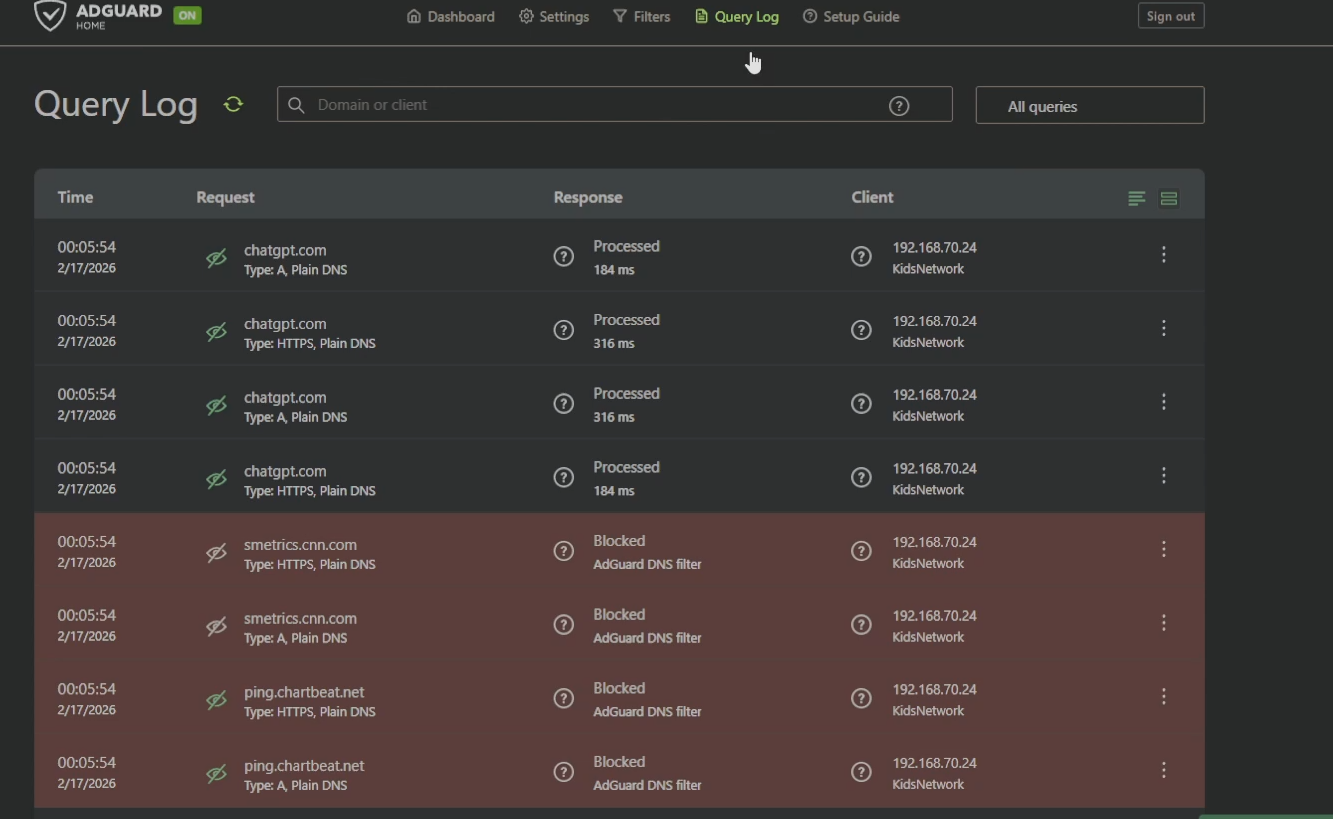
My kids are on a separate VLAN (192.168.70.x) with AdGuard Home handling content filtering. At least, that's what I thought. When I started this project, I spun up a fresh AdGuard instance on a Proxmox LXC and tested it. Main network queries: logged and filtered, no problem. Kids network: queries were getting responses, but nothing was showing up in the query log, and ads.google.com was returning a real IP instead of being blocked.
I verified AdGuard was listening on all interfaces. I checked the query log settings: enabled, no ignored clients. I ran Wireshark on a laptop on the kids network, and it showed DNS queries going to 192.168.1.22 (my new AdGuard instance) with responses coming back. But tcpdump on the LXC itself showed nothing from 192.168.70.x. Zero packets. Then I ran tcpdump on the Proxmox host, still nothing from that subnet.
Traffic was reaching the AdGuard IP from the kids network's perspective, responses were coming back, but AdGuard never saw a single packet. That's... not how networking works. Unless something between the client and the server was intercepting the traffic, spoofing the source address to look like it came from AdGuard, and answering the queries itself.
That something was my UDM Pro. The UniFi content filter was enabled on the kids VLAN, and it was silently hijacking every DNS query, answering them with its own resolver while forging the response source IP to appear as if AdGuard had answered. It's technically DNS hijacking, and it's a built-in "feature." The moment I disabled it in Settings → Traffic & Security → Content Filter, tcpdump lit up with kids network traffic and AdGuard started blocking as expected.
Six hours of debugging. One checkbox.

The Architecture Decision
The DNS debugging rabbit hole also crystallized something I'd been feeling for a while: network infrastructure services shouldn't live on Unraid. Unraid is fantastic at what it does (managing a storage array with parity, running media services), but its Docker abstraction layer actively gets in the way when you need to do serious troubleshooting. The volume mount weirdness that had been silently misconfiguring my original AdGuard instance (/opt/adguardhome/data/ not mounted while /opt/adguardhome/work/data/ existed) was a perfect example.
The new architecture separates responsibilities cleanly:
- TheIronArmada (Unraid): storage array, parity, media services
- WatchTower (Proxmox): core network infrastructure in LXCs
- TheArk (Raspberry Pi 4, 8GB): backup/failover node
The names are Halo lore: Domain handles DNS and infrastructure (Forerunner), The Ark is preservation and backup. I'm not sorry.
For high availability, the design uses Keepalived with VRRP to float virtual IPs between the two nodes. Two VIPs: 192.168.1.25 for DNS and 192.168.1.26 for the reverse proxy. Domain (Proxmox LXC at 192.168.1.22) is the primary with priority 150. The Ark (Pi at 192.168.1.21) is the backup with priority 100. If Domain goes down, The Ark takes over both VIPs automatically and your devices never know anything happened.
Here's what the final stack looks like:
Domain LXC (192.168.1.22)
├── AdGuard-Domain     (DNS primary, port 8123)
├── AdGuard-Sync       (config sync every 15 min)
├── Step-CA            (internal certificate authority)
└── Traefik            (reverse proxy primary)

The Ark Pi (192.168.1.21)
├── AdGuard-Ark        (DNS backup, port 8123)
└── Traefik            (reverse proxy backup)

Virtual IPs (via Keepalived)
├── 192.168.1.25       (DNS, VI_1)
└── 192.168.1.26       (Traefik, VI_2)

DNS Rewrites
└── *.soe → 192.168.1.26
Part 1: AdGuard Home on Proxmox LXC
I created a privileged Ubuntu 24.04 LXC on WatchTower: 2GB RAM, 8GB disk, 2 cores, static IP 192.168.1.22. The "privileged" part matters for some container operations, and for a network services container it's the right call.
Docker installation is standard, straight from the guide:
apt install -y ca-certificates curl gnupg
curl -fsSL https://download.docker.com/linux/ubuntu/gpg | gpg --dearmor -o /etc/apt/keyrings/docker.gpg
echo "deb [arch=$(dpkg --print-architecture) signed-by=/etc/apt/keyrings/docker.gpg] \
  https://download.docker.com/linux/ubuntu $(. /etc/os-release && echo "$VERSION_CODENAME") stable" \
  | tee /etc/apt/sources.list.d/docker.list
apt update && apt install -y docker-ce docker-ce-cli containerd.io docker-buildx-plugin docker-compose-plugin
systemctl enable docker
The AdGuard compose file uses host networking, and this is non-negotiable for a DNS server. You need it to share the LXC's network stack directly rather than going through Docker NAT, which adds complexity and can cause issues with DNS traffic:
# /opt/domain/adguard/docker-compose.yml
services:
  adguard:
    image: adguard/adguardhome:latest
    container_name: AdGuard-Domain
    restart: unless-stopped
    network_mode: host
    volumes:
      - ./workingdir:/opt/adguardhome/work
      - ./conf:/opt/adguardhome/conf
One more thing: systemd-resolved will conflict with port 53. Kill it before starting AdGuard:
systemctl disable systemd-resolved
systemctl stop systemd-resolved
Repeat the same setup on The Ark, substituting the Pi's IP.
Part 2: Keepalived for DNS High Availability
Keepalived implements VRRP (Virtual Router Redundancy Protocol), the same protocol enterprise gear uses for gateway redundancy. It's simple, battle-tested, and exactly what we need here.
I'm using unicast mode instead of multicast. Multicast can have issues across some network setups; unicast is explicit about who's talking to who and I prefer explicit.
Domain LXC (/etc/keepalived/keepalived.conf):
vrrp_instance VI_1 {
    state MASTER
    interface eth0
    virtual_router_id 51
    priority 150
    advert_int 1
    authentication {
        auth_type PASS
        auth_pass YOUR_SECURE_PASSWORD
    }
    unicast_src_ip 192.168.1.22
    unicast_peer {
        192.168.1.21
    }
    virtual_ipaddress {
        192.168.1.25/24
    }
}
The Ark (/etc/keepalived/keepalived.conf), only four lines change from Domain's config:
vrrp_instance VI_1 {
    state BACKUP              # was MASTER
    interface eth0
    virtual_router_id 51
    priority 100              # was 150
    advert_int 1
    authentication {
        auth_type PASS
        auth_pass YOUR_SECURE_PASSWORD
    }
    unicast_src_ip 192.168.1.21   # was 192.168.1.22
    unicast_peer {
        192.168.1.22              # was 192.168.1.21
    }
    virtual_ipaddress {
        192.168.1.25/24
    }
}
Enable and start on both nodes, then verify the VIP is present on Domain:
bash
systemctl enable keepalived && systemctl start keepalived
ip a show eth0
You should see 192.168.1.25 in the output on Domain.

To test failover, block Domain in UniFi's client list. Within a second or two, The Ark should pick up the VIP and DNS should continue working without any client reconfiguration. When I tested this: "blocked and unblocked domain in unifi and it switched HECK YEAH!" - direct quote from my notes.
Point your DHCP server to push 192.168.1.25 as the DNS server, not either node's real IP. That's the whole point.
Part 3: AdGuard Home Sync
Two AdGuard instances means two places to manage blocklists, custom rules, and client configurations. That's not sustainable. My first instinct was to write an rsync script, but I quickly talked myself into asking: isn't there already a Docker image for this?
There is. ghcr.io/bakito/adguardhome-sync handles origin-to-replica synchronization with a cron schedule. One gotcha: Docker environment variables don't handle special characters like ! well. Save yourself the debugging and use a config file from the start.
# /opt/domain/adguardsync/adguardhome-sync.yaml
origin:
  url: http://192.168.1.22
  username: your_adguard_username
  password: "your_origin_password"

replicas:
  - url: http://192.168.1.21
    username: your_adguard_username
    password: "your_replica_password"

cron: "*/15 * * * *"
runOnStart: true
# /opt/domain/adguardsync/docker-compose.yml
services:
adguardhome-sync:
image: ghcr.io/bakito/adguardhome-sync:latest
container_name: AdGuard-Sync
restart: unless-stopped
ports:
- "8080:8080"
volumes:
- ./adguardhome-sync.yaml:/opt/adguardhome-sync/adguardhome-sync.yamlWhen it's working, the logs are satisfying:
Connected to origin     192.168.1.22
Connected to replica    192.168.1.21
Sync done               duration: 9.5e-08s
Make all your AdGuard changes on Domain. Every 15 minutes they propagate to The Ark automatically.
Part 4: Step-CA: Your Own Internal Certificate Authority
Here's where things get interesting. I want HTTPS for all my internal services on a.soe TLD. Let's Encrypt requires a publicly reachable domain, which is a non-starter. The solution is to run your own Certificate Authority with Smallstep's step-ca, which provides an ACME endpoint that works exactly like Let's Encrypt, but entirely internal.
If you're not familiar with ACME (Automated Certificate Management Environment), it's the protocol that Let's Encrypt built to automate the process of obtaining and renewing SSL certificates. The basic idea: a client like Traefik asks a CA for a certificate, the CA issues a challenge to prove you actually control the domain, the client responds to the challenge, and if it passes the CA issues the cert. The whole thing happens automatically in the background. Step-CA implements the same ACME protocol, so any client that works with Let's Encrypt works with Step-CA, just pointed at your internal CA server instead of Let's Encrypt's.
# /opt/domain/step-ca/docker-compose.yml
services:
  step-ca:
    image: smallstep/step-ca:latest
    container_name: Step-CA
    restart: unless-stopped
    ports:
      - "9000:9000"
    volumes:
      - ./data:/home/step
    environment:
      - DOCKER_STEPCA_INIT_NAME=SOE Internal CA
      - DOCKER_STEPCA_INIT_DNS_NAMES=step-ca.soe,192.168.1.22
      - DOCKER_STEPCA_INIT_REMOTE_MANAGEMENT=true
      - DOCKER_STEPCA_INIT_ACME=true
If the container fails with a permissions error on first run, fix the ownership before retrying:
chown -R 1000:1000 /opt/domain/step-ca/dataOn startup, Step-CA generates a root CA certificate and one-time admin credentials. Save these immediately. Extract the root cert:
docker exec Step-CA cat /home/step/certs/root_ca.crtNow distribute this certificate to every device on your network as a trusted root. This is the one manual step in the whole process, and it's worth being honest about what it actually involves.
On Windows, open certmgr.msc, navigate to Trusted Root Certification Authorities → Certificates, right-click and import your root_ca.crt. Any browser or application that uses the Windows certificate store (Chrome, Edge, most apps) will immediately trust certs issued by your CA. Firefox manages its own store separately, so you'll need to import there too under Settings → Privacy & Security → Certificates.
On macOS, double-click the cert to add it to Keychain, then open Keychain Access, find the cert, and set it to "Always Trust." iOS and Android have similar import flows through the device settings.
In my case that meant my main workstation, a laptop, and a handful of phones; maybe 10 minutes of actual work spread across all of them. The key thing to understand is that you're doing this trust installation exactly once per device. After that, every certificate your CA ever issues, for every service you add to Traefik, is automatically trusted on those devices. You never have to touch them again unless you rebuild the CA from scratch, which is why the backup step below matters.
Back up the CA data directory. Losing this means reissuing your root cert and re-trusting everything:
bash
cp -r /opt/domain/step-ca/data /opt/domain/step-ca/data-backupPart 5: Traefik as a Reverse Proxy
Traefik is the final piece. It handles HTTPS termination, routing traffic to backend services, and (critically) it's the one that talks to Step-CA to obtain certificates. The workflow: Traefik requests a cert from Step-CA using ACME, Step-CA issues it, Traefik stores it in acme.json and serves it to clients. Certs auto-renew every 90 days. Clients just see a valid HTTPS connection.
The static config:
# /opt/domain/traefik/config/traefik.yml
global:
  checkNewVersion: false
  sendAnonymousUsage: false

api:
  dashboard: true
  insecure: false

entryPoints:
  web:
    address: ":80"
    http:
      redirections:
        entryPoint:
          to: websecure
          scheme: https
  websecure:
    address: ":443"

certificatesResolvers:
  step-ca:
    acme:
      email: admin@soe.internal
      storage: /certs/acme.json
      caServer: https://192.168.1.22:9000/acme/acme/directory
      httpChallenge:
        entryPoint: web

serversTransport:
  insecureSkipVerify: true

providers:
  docker:
    endpoint: "unix:///var/run/docker.sock"
    exposedByDefault: false
  file:
    directory: /config/dynamic
    watch: true

log:
  filePath: /logs/traefik.log
  level: INFO

accessLog:
  filePath: /logs/access.log
The dynamic config for services (Traefik hot-reloads this file without restart thanks to watch: true):
# /opt/domain/traefik/config/dynamic/services.yml
http:
  routers:
    traefik-dashboard:
      rule: "Host(`traefik.soe`)"
      entryPoints:
        - websecure
      service: api@internal
      tls:
        certResolver: step-ca
      middlewares:
        - auth

    adguard:
      rule: "Host(`adguard.soe`)"
      entryPoints:
        - websecure
      service: adguard
      tls:
        certResolver: step-ca

    proxmox:
      rule: "Host(`proxmox.soe`)"
      entryPoints:
        - websecure
      service: proxmox
      tls:
        certResolver: step-ca

  services:
    adguard:
      loadBalancer:
        servers:
          - url: "http://192.168.1.22:8123"
    proxmox:
      loadBalancer:
        servers:
          - url: "https://192.168.1.16:8006"
        serversTransport: insecureTransport

  middlewares:
    auth:
      basicAuth:
        users:
          - "yourusername:YOUR_BCRYPT_HASH"  # generate with: echo $(htpasswd -nB yourusername)

  serversTransports:
    insecureTransport:
      insecureSkipVerify: true
The compose file:
# /opt/domain/traefik/docker-compose.yml
services:
  traefik:
    image: traefik:latest
    container_name: Traefik
    restart: unless-stopped
    ports:
      - "80:80"
      - "443:443"
    volumes:
      - ./config/traefik.yml:/etc/traefik/traefik.yml:ro
      - ./config/dynamic:/config/dynamic:ro
      - ./certs:/certs
      - ./certs/root_ca.crt:/usr/local/share/ca-certificates/root_ca.crt:ro
      - ./logs:/logs
      - /var/run/docker.sock:/var/run/docker.sock:ro
    extra_hosts:
      - "host.docker.internal:host-gateway"
    environment:
      - SSL_CERT_FILE=/usr/local/share/ca-certificates/root_ca.crt
A few things to note here. First, AdGuard uses port 8123 for its web UI; you'll need to change this from the default port 80 in AdGuard's settings since Traefik owns ports 80 and 443. Second, Proxmox uses a self-signed cert on its backend, so insecureSkipVerify: true is necessary for that specific service transport. Third, the root CA cert is mounted into Traefik so it can verify Step-CA's own certificate when requesting new certs via ACME.
The Hidden Gotcha: Docker's DNS Problem
This one was subtle and cost some time. When Traefik requests a certificate via ACME HTTP challenge, Step-CA needs to verify the challenge by connecting back to the domain being validated. That means Step-CA needs to resolve traefik.soe. But Docker containers default to using 127.0.0.11 (Docker's internal DNS) which forwards to the host's configured nameserver (in my case, the UDM Pro at 192.168.1.115). The UDM Pro has no idea what .soe is.
The fix: tell Docker to use AdGuard as its DNS server.
bash
nano /etc/docker/daemon.jsonjson
{
  "dns": ["192.168.1.25"]
}
bash
systemctl restart dockerRestart all your containers after this. Once the containers were using the VIP for DNS and could resolve .soe addresses, the ACME challenge succeeded immediately and certs started flowing:
Renewing ACME certificate: {Main:traefik.soe SANs:[]}
Renewing ACME certificate: {Main:proxmox.soe SANs:[]}
Renewing ACME certificate: {Main:adguard.soe SANs:[]}
Part 6: A Second VIP for Traefik
DNS and Traefik live on the same nodes, but they should be able to fail over independently. So they each get their own VIP and their own VRRP instance.
The VI_2 block follows exactly the same pattern as VI_1, same four lines change, different VIP and a separate password so the two instances are fully independent:
vrrp_instance VI_2 {
    state MASTER              # BACKUP on The Ark
    interface eth0
    virtual_router_id 52      # must be different from VI_1's 51
    priority 150              # 100 on The Ark
    advert_int 1
    authentication {
        auth_type PASS
        auth_pass YOUR_SECURE_PASSWORD_2
    }
    unicast_src_ip 192.168.1.22   # 192.168.1.21 on The Ark
    unicast_peer {
        192.168.1.21              # 192.168.1.22 on The Ark
    }
    virtual_ipaddress {
        192.168.1.26/24
    }
}
Note the separate virtual_router_id (52 vs 51) and separate auth password; each VRRP instance is independent.
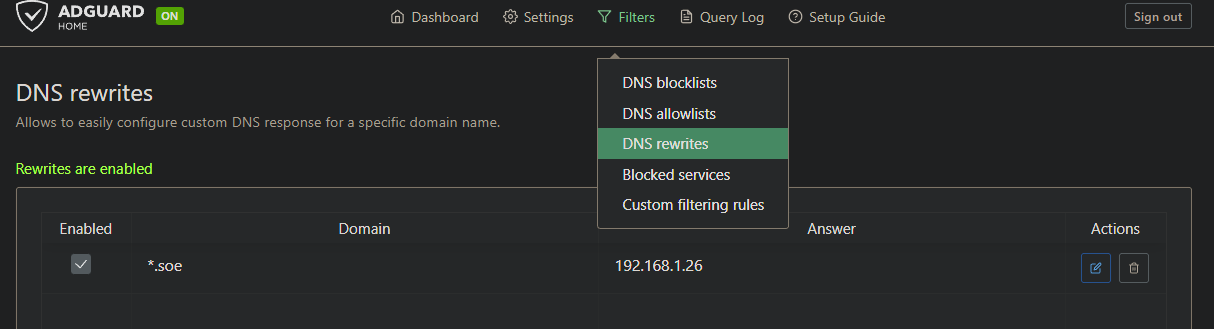
Then add a wildcard DNS rewrite in AdGuard: *.soe → 192.168.1.26. Every .soe hostname now resolves to the Traefik VIP automatically. Adding a new service to Traefik's dynamic config is all you need; no DNS entry to manage.
Traefik on The Ark
The backup node needs a matching Traefik instance. Copy the config files and make one important change in services.yml: the AdGuard backend URL should point to the VIP (192.168.1.25), not Domain's real IP. This way The Ark's Traefik will use whichever AdGuard instance is currently active.
One certificate issue: when The Ark is in BACKUP state, it doesn't own the VIP. Traefik on The Ark can't get certificates via HTTP challenge because Step-CA can't reach it at traefik.soe (which resolves to the VIP that Domain owns). The practical solution for now is to copy Domain's acme.json to The Ark:
# On Domain
scp /opt/domain/traefik/certs/acme.json soe_admin@192.168.1.21:/tmp/

# On The Ark
sudo cp /tmp/acme.json /opt/ark/traefik/certs/acme.json
sudo chmod 600 /opt/ark/traefik/certs/acme.json
docker restart Traefik
When The Ark becomes MASTER, it will own the VIP and can get its own certs. Until then, the copied certs are valid and functional. Long-term, I want to automate this sync via Git, but that's a future post when Gitea is set up.
The End State
After a couple of late evenings, here's what's live:
https://adguard.soe- AdGuard Home dashboard, green padlock ✓https://traefik.soe- Traefik dashboard(basic auth protected),green padlock ✓https://proxmox.soe- Proxmox web UI, green padlock ✓
Traefik dashboard shows 5 routers, 6 services, 2 middlewares, all green. Keepalived failover tested and verified for both VIPs. AdGuard sync running every 15 minutes. Kids network properly filtered (no secret router content filtering in the way this time).
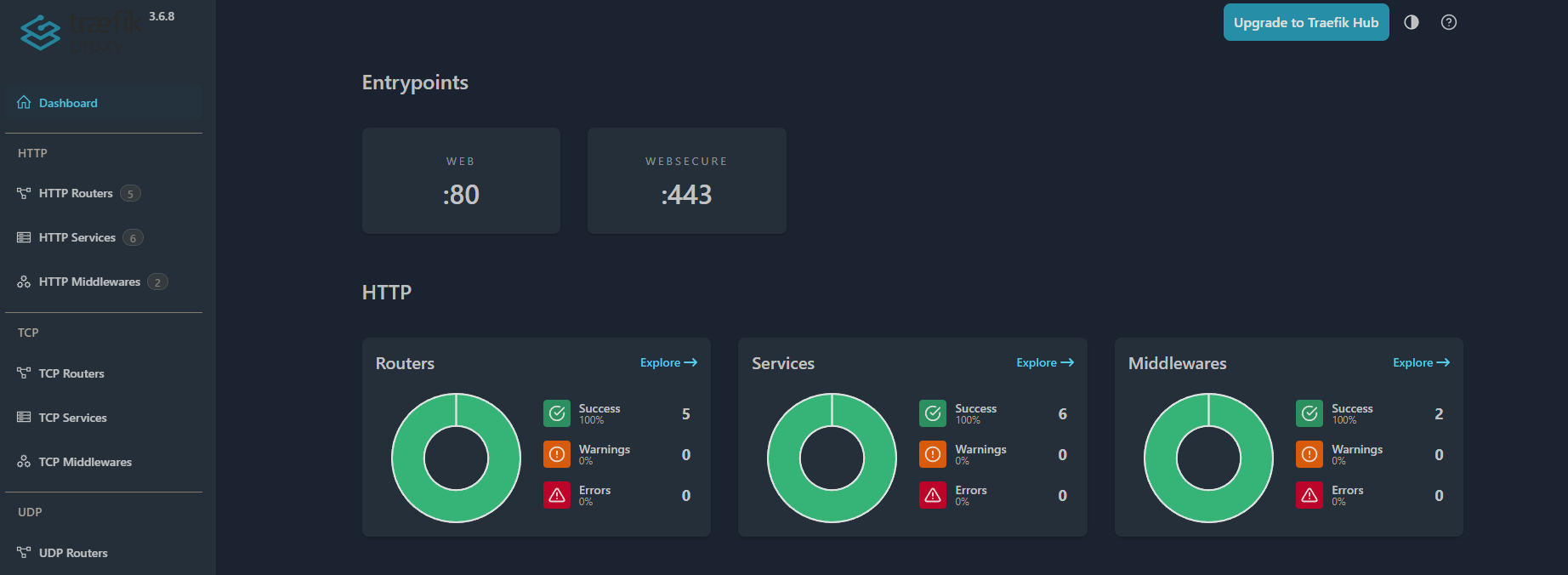
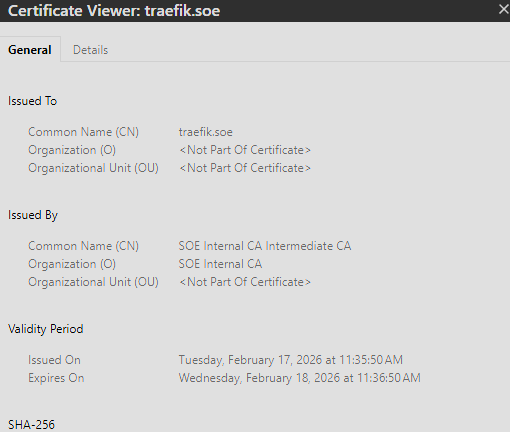
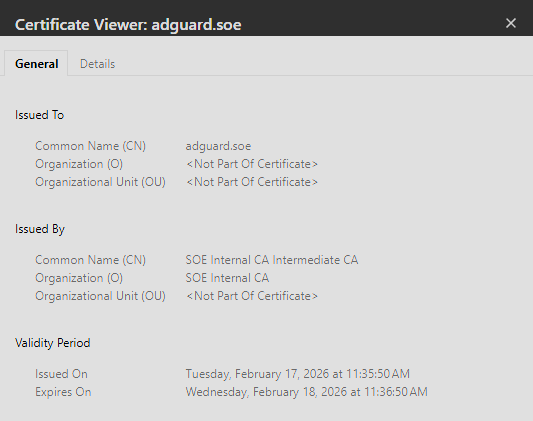
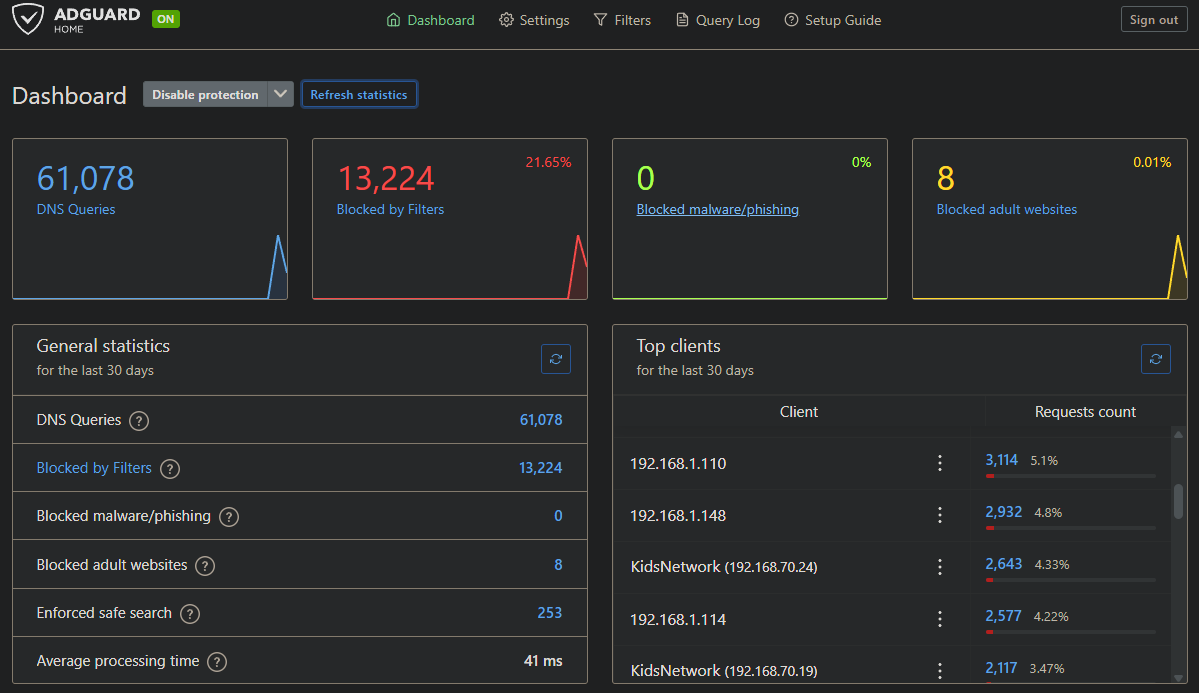
Traefik dashboard, working SSL certs, Dashboard blocking ads and non-family friendly sites
The next time I need to pull a drive out of TheIronArmada or rearrange the rack, DNS failover happens automatically in under a second. The Ark picks up the VIP, everything keeps working, nobody notices, and I can do maintenance at a reasonable hour like a sane person.
What's Next
A few things are still on the list:
Gitea for infrastructure-as-code. Right now the configs live on the nodes themselves. I want them in a self-hosted Git repo so every change is tracked, and so Traefik config sync from Domain to The Ark can be automated via a post-commit hook instead of manual scp. Once Gitea is up, the plan is to bring every remaining internal service into this reverse proxy setup and document that whole journey in a follow-up post.
Keepalived health checks. Worth a note here because I had this in my original plan and had to correct myself. Keepalived in this setup is doing pure VRRP; it fails over when the entire node goes down, not when an individual container crashes. If AdGuard or Traefik died on Domain while the LXC itself was still up, Keepalived wouldn't know and wouldn't fail over. That said, Keepalived does actually support service-level health checks via vrrp_script blocks that run custom scripts on an interval and can dynamically lower a node's priority to trigger failover. So this is doable, just not wired up yet. My near-term plan is simpler: use Uptime Kuma to monitor the containers, and if something goes down, trigger a restart of the Domain LXC. When the LXC restarts, Keepalived naturally fails over to The Ark during the reboot window, then fails back once Domain comes up. The primary problem this whole project was built to solve, being able to power down an entire host without losing internet, is already solved.
IoT VLAN DNS. I have another confession: I still have IoT devices. Smart bulbs, a robot vacuum, and (regretfully) s few Alexas that are on the replacement list. They're quarantined on their own VLAN with internet-only rules, but I took the segmentation a step further. A Pi B+ still in a drawer is going to become a dedicated, standalone Pi-hole for this network.
Why not just point them at the HA DNS VIPs? Two reasons.
First, doing so requires opening a hole with a firewall rule allowing port 53 traffic from the IoT VLAN into my main infrastructure. My IoT VLAN is internet-only by design, meaning any inter-VLAN path I open is a new attack surface. If AdGuard or the LXC underneath it ever has a CVE, a compromised IoT device now has a permitted network path to try to exploit it. DNS servers have had their share of vulnerabilities over the years. I'd rather not find out the hard way.
Second, even if the implementation is perfectly secure, my internal DNS servers know things: hostnames, service names, network topology hints baked right into the DNS records. I don't want devices I fundamentally don't trust using DNS as a recon tool against my core infrastructure.
A separate resolver with its own blocklist and zero knowledge of my internal network eliminates both vectors. It's not just a separate VLAN. It's a separate brain.
At the end of the day, this whole project started because I was tired of choosing between doing maintenance and keeping the lights on. What I ended up with is a lot more than that: redundant DNS, automatic failover, internal HTTPS across the board, a proper reverse proxy, and a network segmentation story I can actually defend. A few late evenings well spent.
If any of this helped or you built something similar, leave a comment on my LinkedIn.